





Organize sources into libraries
Business Knowledge is in private beta. If Business Knowledge isn't in your PostHog sidebar, your project isn't in the beta yet. Send feedback in the app.
A library is a group of sources and GitHub repositories. Libraries do two jobs:
- They keep your knowledge organized, for example by audience or by team
- They limit what an agent reads. A key for one library reads that library and nothing else.
A source can be in more than one library, or in none. A project can have up to 100 libraries.


Plan your libraries
Start from who reads the knowledge, not from where it comes from.
| Library | What goes in it | Who reads it |
|---|---|---|
| Public docs | Docs site, pricing page, published policies | A customer-facing agent |
| Team handbook | Internal runbooks, escalation rules, tone guide | An internal agent for your team |
| Engineering | API reference, selected repositories | A coding agent |
Anything in a library is readable by every agent with a key for it. Keep a source out of a library when one of that library's agents must not repeat it.
Create a library
- Open the Libraries tab in Business Knowledge
- Click New library and enter a name
PostHog opens the new library, where you add its sources.
Add and remove sources
Open a library to see its sources.
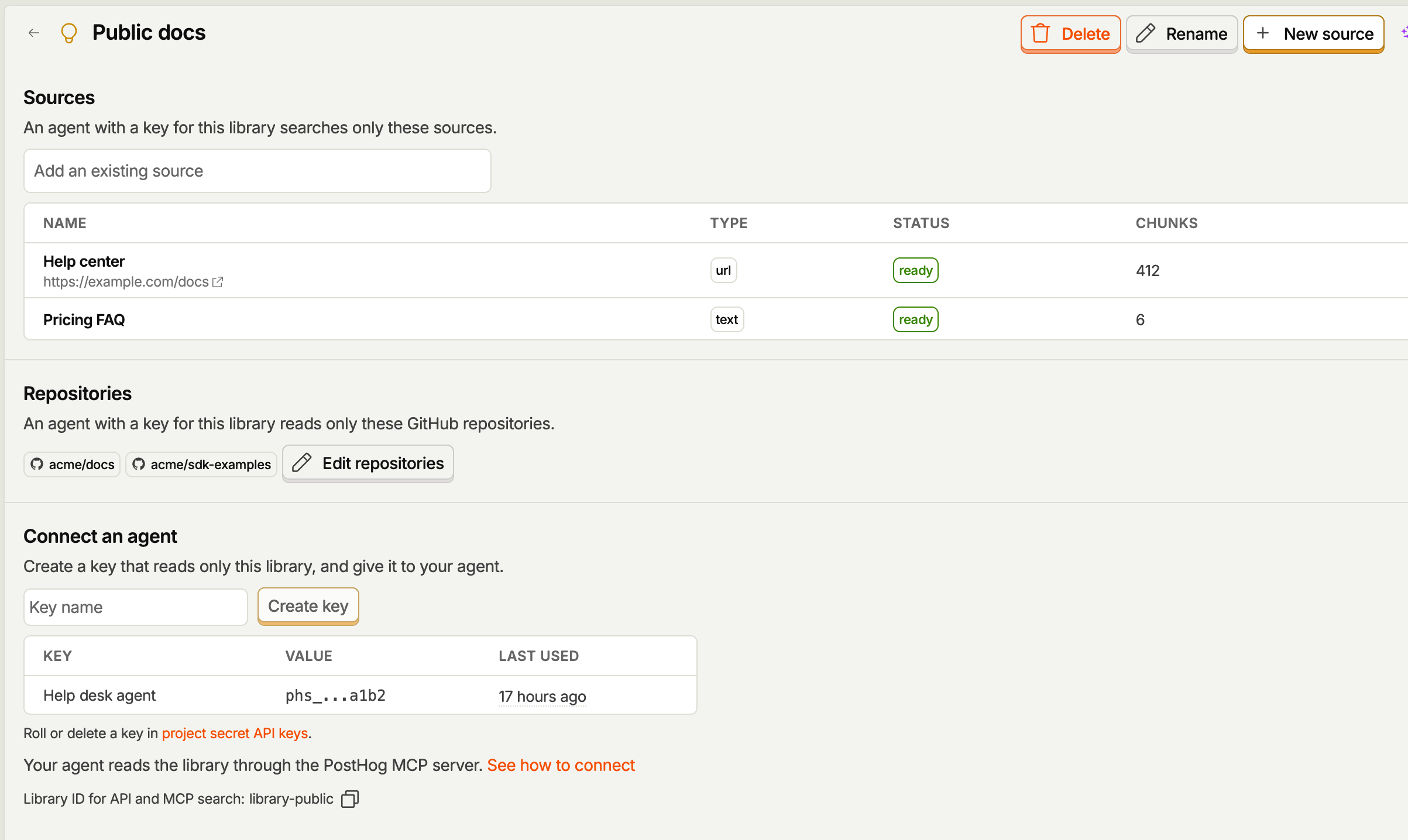
- To add a source you already have, search for it under Add an existing source
- To add a new source to the library, click New source
- To remove a source, click the remove button on its row. The source stays in Business Knowledge and in its other libraries.
You can also choose libraries when you add a source, or change them on the source's own page.
On the Sources tab, the library filter shows the sources in one library. No library shows the sources that aren't in any.
Add repositories
A library can also hold GitHub repositories. On the library page, click Edit repositories and choose from the repositories selected in Business Knowledge settings. An agent with a key for the library can search and read only those repositories.
The default library
One library carries the Default tag. Answers that PostHog learns from support join this library. If your customer-facing agent must not read learned answers, give it a key for a different library.
Connect an agent to a library
The library page has a Connect an agent section. Enter a name and click Create key. The key reads this library only. PostHog shows it once, inside a configuration you can copy into your agent.
The section lists the keys for the library and when an agent last used each one. On the Libraries tab, Agent keys shows how many keys read each library, and how many read all your Business Knowledge.
You need to be a project admin to create a key. See connect your own agent.
Rename or delete a library
Use Rename and Delete on the library page.
Deleting a library doesn't delete its sources or repositories. A key for the deleted library stops working, so create a new key before you delete a library an agent uses.
Limit a search to a library
A search through the MCP tools or the REST API accepts a library_id. Copy the ID at the bottom of the library page. A key for one library reads that library when a request has no library_id. A request that passes the ID of another library returns 404.